
Post Menu and Details.
- What a genuine Amazon security alert actually looks like
- The two-minute check that settles it
- Reading the sender line and the links without clicking
- Why these emails keep arriving, and who is sending them
- What to do if you already clicked
- Mistakes that turn a warning into a real problem
- When to contact Amazon directly, and how
- A calmer routine for the next one
- Amazon Account Attackers Warning FAQ
Words: 1292
Reading time: ~5 minutes
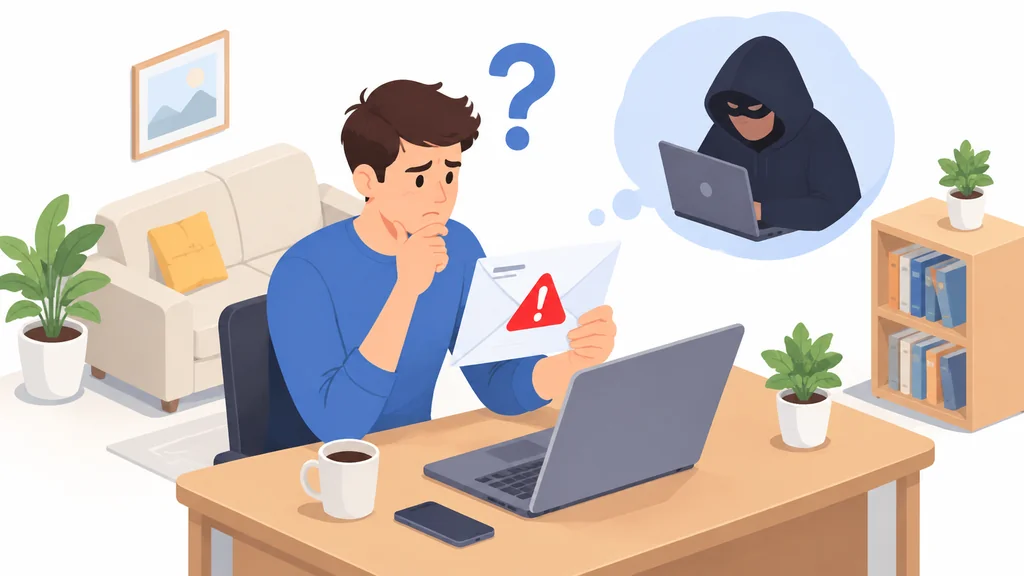
A real Amazon warning email is one you can confirm inside your own account, without clicking anything in the message. Open Amazon in a fresh browser tab, sign in, and look under Your Account for the same notice.
The rest of this guide covers the checks, the mistakes people make, and what to do when the warning turns out to be genuine.
What a genuine Amazon security alert actually looks like
A phishing email borrows the logo, the colours, and the tone, then adds pressure. Your account will be closed, a payment failed, a package is held. That urgency is the product being sold to you.
One historical example shows how far the disguise can go. In August 2017, customers of Amazon faced the Amazon Prime Day phishing attack, where hackers sent seemingly legitimate deals. The emails looked like ordinary promotions, which is exactly why the verify-inside-the-account rule beats reading the message more carefully.
The two-minute check that settles it
- Leave the email open but do not click any link or button in it.
- Open a new browser tab and type the Amazon address yourself, or use a bookmark you already trust.
- Sign in and open Your Account, then the login and security settings.
- Compare what you see with what the email claims.
- If the email mentions an order, open Your Orders and look for it.
- Report the message. Forward phishing texts to SPAM (7726), the shortcode the FTC advises for spam messages. For email, use Amazon’s reporting route if available.
- If the warning is real, change your password from inside the account and turn on two-step verification.
The two-minute check that settles it1Leave the email open2Open a new browser tab3Sign in and open Your Account4Compare what you see5If the email mentions an order, open Your Orders6Report the message7If the warning is realThe steps from this section at a glance.
Notice that step two is the whole trick. You never travel from the email to the login page, so a lookalike site never gets the chance to collect anything.
Reading the sender line and the links without clicking
Most people glance at the display name, see “Amazon”, and relax. The display name is free text. Anyone can set it. What matters is the domain after the @ sign, and even that can be dressed up with subdomains that put the word Amazon far to the left of the real domain.
On a phone this is harder, because mail apps often show only the display name until you tap it. Tap it. On a desktop, hover over a link without clicking and read the address that appears at the bottom of the window.
Shortened links hide the destination entirely, so treat any shortened link in a security email as a reason to stop and use the manual route instead. The same logic applies to text messages.
Grammar and layout are weaker signals than people think. Large phishing operations now write clean English and copy the real template closely. Use the sender domain and the in-account check as your evidence, and let typos serve only as a bonus clue.
Why these emails keep arriving, and who is sending them
Phishing is a volume business. Qatar recorded 93,570 phishing attacks in the first quarter of 2017 alone, which gives a sense of the scale even in a single country over three months. Your inbox is one small part of a very large net.
The worrying variant is the targeted one. In a field experiment, simulated spear-phishing emails were sent to 100 younger and 58 older adults over 21 days, and 43% of participants clicked at least one simulated phishing link.
That 43% figure shows why clicking can be a normal human response to a message that looks like it matters. The defence is a routine, not vigilance.

What to do if you already clicked
Do not panic, and do not start changing everything at once. Work through it in order.
If you entered your password on a page you now suspect, change the Amazon password immediately from a device you trust, then change it anywhere else you reused it. Reuse is what turns one mistake into a week of cleanup.
Check Your Orders and your account settings for anything you did not do, and remove any unfamiliar address or payment method.
Then check your email account itself. Use a fresh password and turn on two-step verification for the email account.
Finally, report it.
Mistakes that turn a warning into a real problem
The first mistake is replying to the email. A reply confirms your address is live and read by a person, which raises its value on the lists these senders trade.
The second is using the unsubscribe link at the bottom of a phishing message. On a legitimate marketing email it does what it says. On a fake security alert it usually just confirms the same thing a reply would.
The third is reusing the Amazon password elsewhere. If it is the same password as your email or your bank, one phishing page compromises all of them, and the cleanup moves from one account to four.
The fourth is trusting a warning because it arrived while you were actually expecting a delivery. Coincidence is not confirmation. Check Your Orders.
The fifth is doing nothing at all because the email was obviously fake. If you are also tidying up account access, the same careful habits apply when you are sharing Amazon Prime Video without sharing the password, since the goal there is the same one: keeping credentials out of other people’s hands. For another message-based scam example, read this guide to spotting a Coinbase text scam.
When to contact Amazon directly, and how
Contact Amazon when the warning is confirmed inside your account, when you find orders or addresses you did not create, or when you cannot sign in at all. Those are the cases where a person on the other side needs to look.
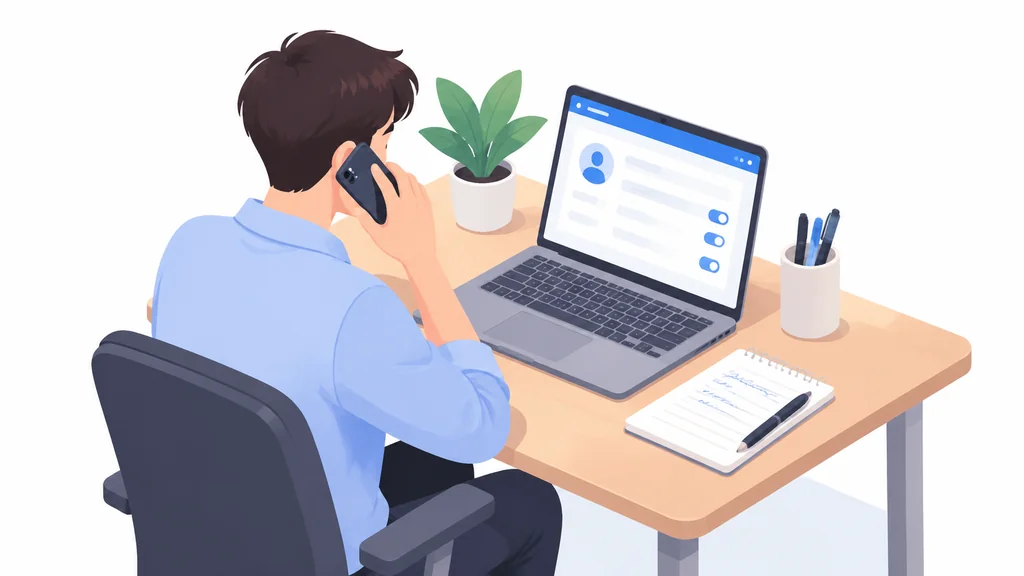
Use the support route inside the app or the website, reached by signing in normally. Do not use a phone number from the email, even if it looks official. Numbers printed in a suspicious message are part of the message.
Have the details ready. The approximate time of the alert, what it said, and what you found in Your Account. That turns a vague conversation into a specific one.
If you have already changed your password and secured your email, say so at the start. It moves the conversation straight to what Amazon needs to check on its side.
A calmer routine for the next one
Set the habit now, while nothing is on fire. Any message that claims your account is at risk gets the same treatment. No links, a fresh tab, sign in yourself, look, then decide.
Keep two-step verification on for Amazon and for your email.
Keep your recovery email and phone number current, so a genuine alert actually reaches you through a channel you control.
And when you do change a password after a scare, change it properly. There is a right way to do that, covered in this guide to changing your Amazon Prime Video password, and the principle carries across every account you own.
Amazon Account Attackers Warning FAQ
How can I tell if an Amazon warning email is real?
Open Amazon in a fresh browser tab, sign in yourself, and look under Your Account for the same notice.
What should I do if I clicked the link but did not enter anything?
Then report the message, forwarding a suspicious text to SPAM (7726) if it arrived by SMS, and delete the email. Run the in-account check once to confirm nothing unusual is listed.
Should I forward a suspicious Amazon email to the FTC?
For Amazon-specific messages, use the reporting option in the Amazon app or website so the company can act on the address.
Thank you for reading!