
Post Menu and Details.
- What appears on the iPhone caller screen
- The iOS 26 call screener, explained
- How to turn on call screening, step by step
- When the screen stays quiet, and why that happens
- Reading the buttons on a screened call
- The Remind Me and Message buttons in daily use
- What to do about withheld and unknown numbers
- Mistakes people make with the caller screen
- When to call your carrier instead
- iPhone Caller Screen FAQ
Words: 1952
Reading time: ~8 minutes
The iPhone caller screen is the set of buttons that appears the moment a call reaches your phone, and each one decides whether the ringer keeps going, whether the call is silenced, or whether an unknown number gets sent to screening before you ever lift a finger. In iOS 26, Apple added a built-in call screening feature for unknown callers. This guide walks the screen button by button, then shows how to configure the screener so it behaves the way you expect.
What appears on the iPhone caller screen
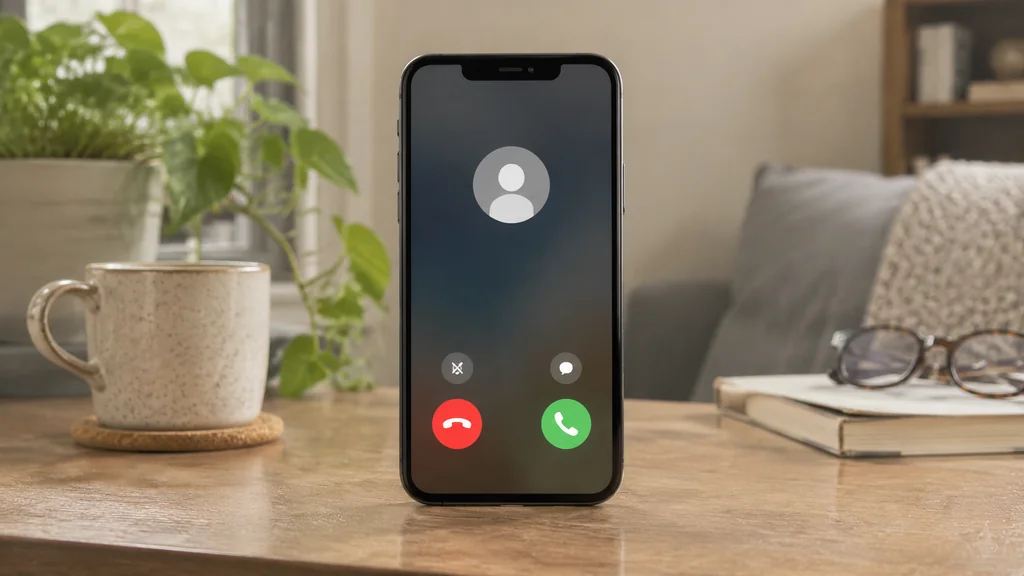
When a call arrives, the iPhone shows a vertical stack of controls over the contact photo or the gray placeholder for an unknown number. The top half identifies the caller. The bottom half is where your thumb lives.
The labels are short and the icons are large, which is deliberate. You are meant to hit them without reading. Here is what each one does.
- Accept (green circle with a handset). Answers the call and turns off the ringer.
- Decline (red circle with a handset). Sends the call to voicemail immediately. A second press after declining is not needed.
- Remind Me (clock icon). Closes the call screen and sets a reminder to call the person back.
- Message (speech bubble). Opens a list of quick text replies, plus a custom option, and sends the message without answering.
- Silence (side button, physical). Mutes the ringer without declining. The call keeps ringing on the caller’s end until voicemail picks up.
The same layout works whether the phone is locked or unlocked. On a locked screen the buttons sit lower, and a swipe up from the bottom reveals the full set if the phone is asleep.
One detail trips people up. Pressing the physical side button once silences the ringer. Pressing it twice declines the call. If you have ever sent someone to voicemail by accident, that second press is usually the reason.
The iOS 26 call screener, explained
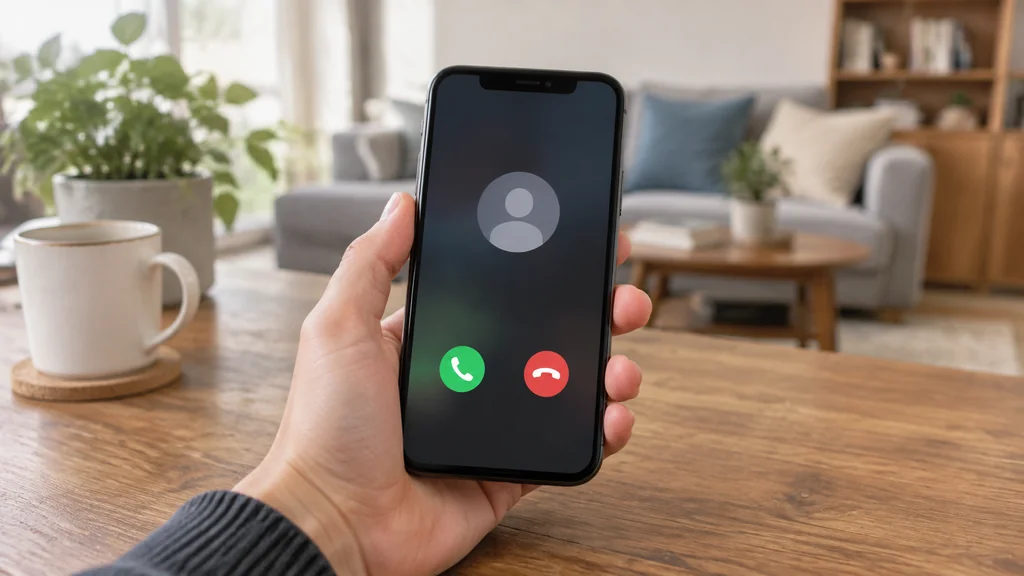
The call screener is the newest button on the list, and it is the one most people ask about. With the release of iOS 26, Apple added a built-in call screening feature for unknown callers inside the Phone app settings. When it is switched on, an unknown number does not ring straight through. Instead, the phone answers on your behalf and asks the caller to say their name and why they are calling, then shows you a live transcript so you can decide whether to pick up.
Two things make this easier to live with than earlier workarounds. First, it runs on any iPhone that can update to the latest iOS and does not require Apple Intelligence, so older hardware is not left out. Second, it is not a subscription or a third-party app. It lives in the same Settings screen as your ringer volume.
Most people who genuinely want to reach you will wait through the prompt. Robocallers usually hang up before the recording finishes. The idea behind the screener is simple. Make the caller prove they are a person before the phone interrupts your day.
If you want the step-by-step version of turning it on and tuning which callers get screened, the walkthrough on setting up iPhone call screening covers the toggle order and the exceptions list.
How to turn on call screening, step by step
The setting is buried one level deeper than most people expect, so here is the exact path.
- Open Settings on the iPhone.
- Scroll down and tap Apps, then tap Phone.
- Tap Screen Unknown Callers.
- Turn the toggle on.
- Choose whether known contacts, recent callers, and people in your contacts should bypass the screen.
- Place a test call from a second phone or a number not saved in your contacts.
- Listen to the prompt and watch the live transcript appear on your screen.
- Decline or accept from the transcript screen once the caller has stated their business.
After the toggle is on, the behavior applies to every call from a number that is not in your contacts and has not called you recently. Your favorites and anyone you have phoned in the past usually ring straight through. Check the exceptions list before you assume a caller will be screened.
The first few days feel strange. You will watch a transcript type itself out and wonder whether the caller can hear you breathing. They cannot. They hear the recorded prompt and nothing else until you tap Accept.
When the screen stays quiet, and why that happens
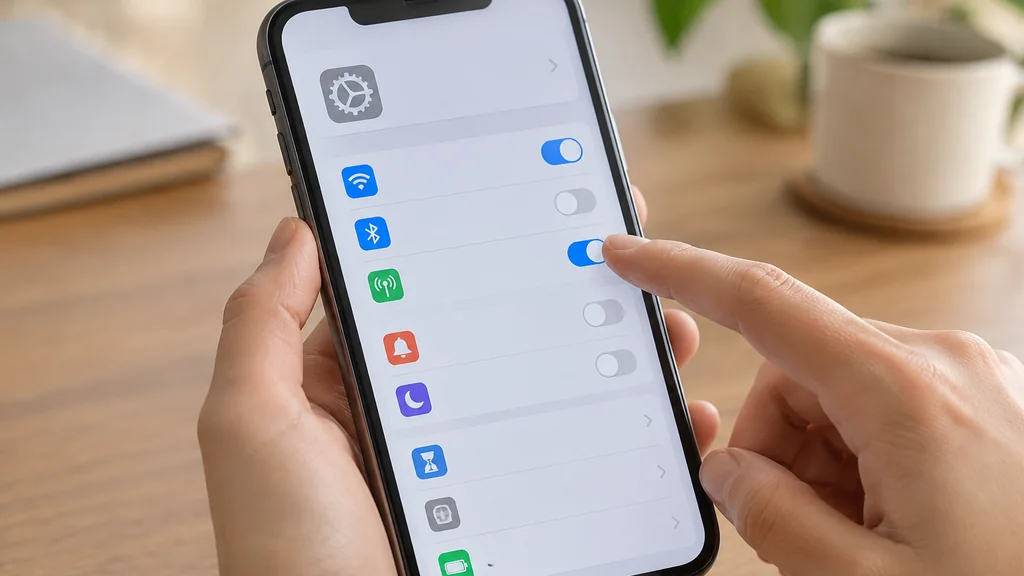
A silent caller screen is almost always a settings problem. Walk through these before you assume the phone itself is broken.
Focus modes. If Do Not Disturb or Sleep is active, calls from people not on your allowed list go straight to voicemail. The screen never lights up. Check Control Center for a moon icon.
Silence Unknown Callers. This older toggle predates the newer screener and still works. It sends unknown numbers to voicemail without any prompt at all. If both features are on, expect unknown calls to disappear quietly.
Do Not Disturb While Driving. The phone may auto-reply to texts and hold calls until you stop moving.
Carrier-level blocking. Some carriers filter suspected spam before the call reaches the handset. Nothing appears on the iPhone because nothing arrived.
Airplane mode or a dead spot. Obvious, easy to miss, and the cause more often than people admit.
The iPhone also labels some incoming calls as Potential Spam before you answer. That label comes from your carrier’s analysis, not from Apple, and it is a hint rather than a verdict. A separate guide on unknown caller versus potential spam explains what the two labels actually mean and why a legitimate business can trigger the spam tag.
Reading the buttons on a screened call
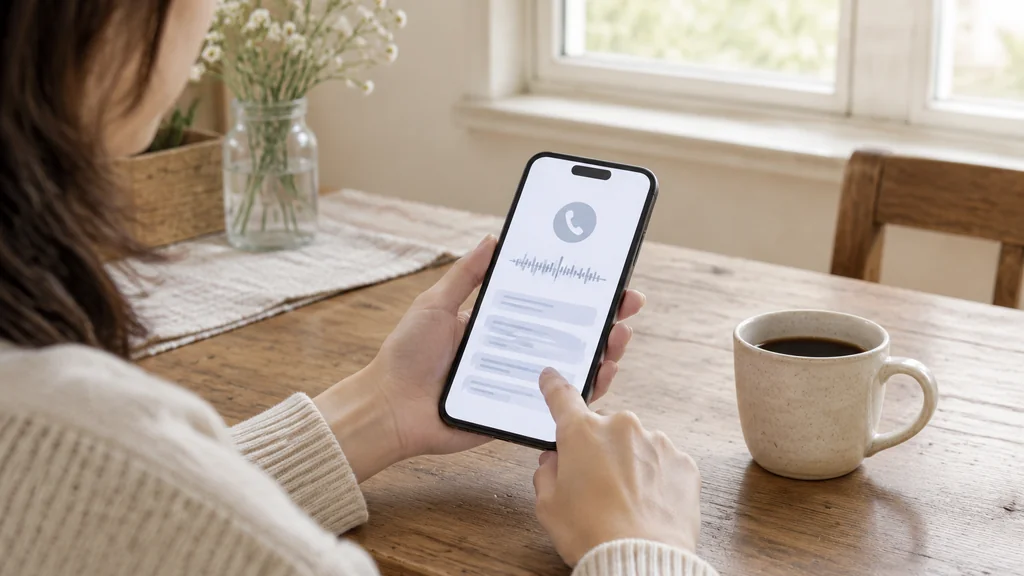
When the screener takes a call, the buttons change. You are no longer answering a ringing phone. You are reading a transcript and making a decision.
The transcript appears line by line as the caller speaks. You will see their name if they give it, and their reason for calling. From there the choices are:
- Accept. Picks up the call and connects you live. The caller hears a short notice that you are joining.
- Decline. Ends the call and sends it to voicemail.
- Ask Again. Prompts the caller for more detail if the transcript is unclear.
- Block. Adds the number to your blocked list so future calls never reach you.
The transcript is not saved as a recording you can replay later in the same way a voicemail is. Treat it as a live view. If the information matters, accept the call and take notes.
One practical habit. Give the caller a few seconds before you decide. A robocall will not wait.
The Remind Me and Message buttons in daily use
These two buttons are the ones people forget exist, and they save the most time.
Remind Me is a location and time trigger. Tap it during an incoming call and the reminder lands in the Reminders app with the caller’s name attached. If you are driving or in a meeting, this is the button to press instead of declining.
Message opens canned replies you can send without answering. The default options cover the common cases, and you can type a custom line if none fit.
Both buttons work from the lock screen. You do not need to unlock the phone first. That matters when the call arrives while the phone is in your pocket and you pull it out with one hand.
These two buttons also reduce the number of calls you decline by reflex. A reminder means you call back on your own schedule.
What to do about withheld and unknown numbers
A call with no number at all is a different problem from an unknown number. The screen shows No Caller ID, and the screener still works because the call has to pass through the same path. What you cannot do is call the person back, because there is no number to dial.
If a withheld number keeps calling and you want to know who it is, the realistic options are narrow. Your carrier may be able to trace it with a formal request, and law enforcement can go further, but neither happens on a whim. A guide on tracing a No Caller ID number lays out which routes actually produce an answer and which ones waste your afternoon.
For most people the practical move is to let the screener handle it. A withheld number that refuses to state a name and reason is rarely worth your time.
Mistakes people make with the caller screen
A few habits cause most of the frustration.
Declining by accident. The double-press of the side button is easy to trigger when you pull the phone from a pocket. If you keep sending calls to voicemail, check how you are gripping the phone.
Leaving both screeners on. Silence Unknown Callers and the call screener do different things. Running both means unknown callers never get a chance to state their business.
Assuming the screener blocks spam. It does not block anything. It screens. The call still arrives, and you still decide. Blocking is a separate action.
Expecting it to work on every call. Calls from your contacts, recent callers, and favorites typically ring through. If you want a specific number screened, it has to look unknown to the phone.
Forgetting the exceptions list. After you add a new plumber or doctor to your contacts, they stop being screened. That is the intended behavior, and it is worth knowing before you panic.
For a broader look at how the two labels differ and when to trust them, the comparison of unknown caller and potential spam is the place to start.
When to call your carrier instead
Some problems are not on the phone. If calls fail to arrive at all, if the caller hears a message you did not set, or if every unknown call is silently dropped, the carrier’s spam filter is the likely cause. Log into your carrier account and look for a call filter or spam blocking section. Turn it off temporarily and test.
If the screener prompt plays but the transcript never appears, restart the phone and check for a software update. A stalled transcript is usually a background process that needs a fresh start.
If none of that helps, a visit to an Apple Store or an authorized service provider is reasonable. Back up first.
iPhone Caller Screen FAQ
Does the call screener need Apple Intelligence?
No. Any iPhone that can update to the latest iOS has the feature, and it does not require Apple Intelligence. That means older models that received the update get the screener even if they cannot run the newer AI features.
How long does a caller wait during screening?
The prompt is deliberately short. A real person will usually stay on the line, while an automated robocall tends to hang up before the recording finishes.
What is the difference between Silence and Decline?
Silence mutes the ringer and lets the call continue to voicemail. Decline sends the call to voicemail immediately. Pressing the physical side button once silences, and pressing it twice declines.
Can I screen a number that is already in my contacts?
Not through the default behavior. The screener targets unknown callers, and contacts, favorites, and recent callers usually ring straight through. If you want a saved number screened, you have to remove it from your contacts or adjust the exceptions list.
Does Android have the same feature?
Call screening is not exclusive to the iPhone. The button layout differs, but the idea of making an unknown caller identify themselves before the phone rings is shared across both platforms.
Thank you for reading!