
Post Menu and Details.
- Quick checks before you troubleshoot
- How to fix Messenger not sending messages on Android
- How to fix Messenger not sending messages on iPhone
- How to fix Messenger not sending on desktop and the web
- Is Messenger down, or is it just me?
- Is it a glitch, or am I blocked?
- What doesn't work (skip these)
- Tips and warnings
- Frequently asked questions
Words: 2591
Reading time: ~10 minutes
Updated July 2026
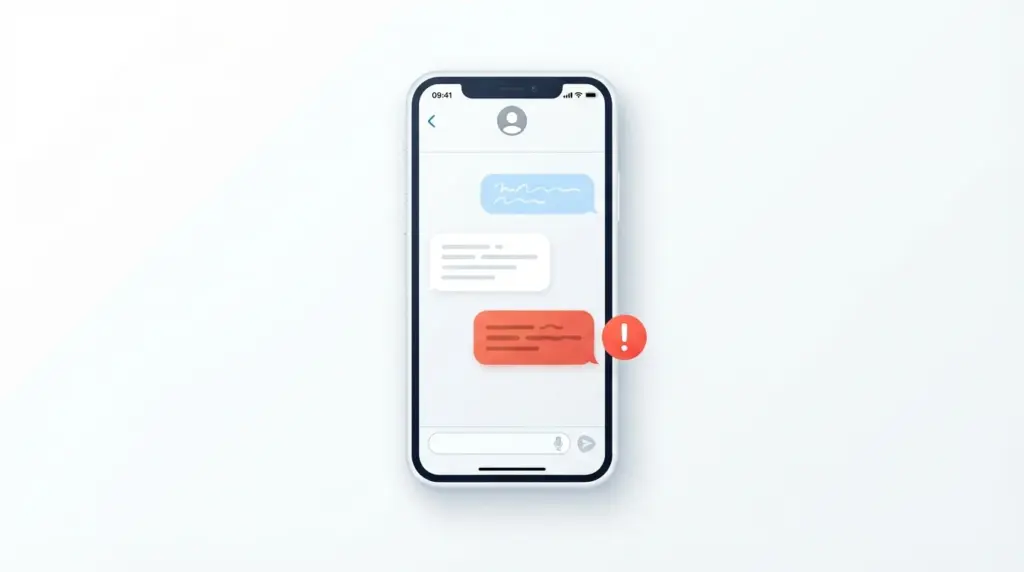
You type a message, hit send, and it just sits there. A spinning circle. Or worse, a red circle with an exclamation mark and the words “message not sent.” Before you assume the worst: when Messenger won’t send a message at all, it is almost always your connection or the app itself, not someone blocking you. A dropped signal, a Messenger outage, or an app that needs a force-close and update covers the large majority of cases. Being blocked looks different, and there’s a quick way to tell them apart.
This guide covers Messenger not sending messages in the literal sense: the message that refuses to leave your device. The send error, the endless loading spinner, the “failed to send” tap-to-retry. I’ve run into it on both an Android phone and the desktop site, so below are the fixes that actually clear it, split by platform, plus the things people try that waste time.
Quick checks before you troubleshoot
Run these first. Any one of them fixes a surprising number of stuck messages, and they take seconds.
- Is your internet actually working? Open a webpage or another app. “Connected to Wi-Fi” and “Wi-Fi that reaches the internet” are not the same thing.
- Is it a photo, video, or link? Big attachments send slower and fail more often on a weak signal. Try sending plain text first to see if that goes through.
- Is your phone’s date and time correct? A wrong clock breaks the secure connection Messenger needs, and sends quietly fail. Set date and time to automatic.
- Are you messaging someone you’re not friends with? Messages to a non-friend can land in their Message Requests folder and look like they failed on your end when they didn’t.
- Is Messenger down right now? If half the internet is having the same problem, no amount of tapping fixes it. See the outage section below.
Still stuck after those? Jump to your device.
How to fix Messenger not sending messages on Android
Work down this list in order. Most people are back to normal by step three.
1. Force-close and reopen Messenger
Swipe up and hold to see recent apps, then swipe Messenger away. Reopen it. This clears a frozen send queue without touching any of your data, which is why it belongs first.
2. Toggle airplane mode
Turn airplane mode on, wait five seconds, turn it off. This forces your phone to rebuild its data connection from scratch and is faster than restarting the whole device.
3. Update the Messenger app
Open the Play Store, search Messenger, and tap Update if the button is there. Old app versions carry sending bugs that a newer build has already patched.
4. Clear the Messenger cache (not the data)
Go to Settings → Apps → Messenger → Storage → Clear cache. This dumps temporary files that can jam sending. Leave “Clear data” alone for now: that one logs you out and resets the app.
5. Free up storage and restart the phone
A phone with almost no free space struggles to queue and send. Delete a few large files, then restart the device. A restart alone resolves a lot of “won’t send” states that nothing else touched.
6. Log out and back in
If it still fails, log out of Messenger and sign back in. Know your Facebook password before you do this. Your conversations are stored on Facebook’s servers, so nothing is lost.
How to fix Messenger not sending messages on iPhone
The order is similar, but a couple of iPhone-specific settings matter.
1. Force-close the app
Swipe up from the bottom and pause, then flick Messenger up and off the screen. Reopen it.
2. Toggle Wi-Fi or airplane mode
Flip airplane mode on and off from Control Center, or turn Wi-Fi off and back on. Rebuilding the connection clears most send errors.
3. Check permissions Messenger needs
In Settings → Messenger, make sure Cellular Data is on (or you’ll only send on Wi-Fi) and Background App Refresh is enabled. If either was off, that alone can explain messages stalling.
4. Update Messenger in the App Store
Open the App Store, tap your profile icon, scroll to pending updates, and update Messenger.
5. Offload the app if you’re low on space
Go to Settings → General → iPhone Storage → Messenger → Offload App. One honest note: on iPhone, Offload frees up storage and keeps your documents and data. It is not a true cache-clear like Android’s. If a corrupted app is the real problem, the iPhone equivalent of a hard reset is to delete Messenger and reinstall it. Your messages live on Facebook’s servers, so a reinstall does not erase your chats.
How to fix Messenger not sending on desktop and the web
Sending from Messenger.com or the Facebook chat panel has its own short list.
- Hard refresh the page. Press Ctrl+Shift+R (Windows) or Cmd+Shift+R (Mac) to reload without the old cached version.
- Clear your browser cache for Facebook and Messenger, then sign back in.
- Disable extensions or try incognito. Ad blockers and privacy extensions sometimes break the chat panel. An incognito window (extensions off by default) tells you fast whether that’s the cause.
- Try a different browser. If it sends in Chrome but not Firefox, the problem is that browser’s settings, not your account.
Is Messenger down, or is it just me?
Before you spend twenty minutes clearing caches, rule out an outage. If Messenger is down for everyone, waiting is the only real fix.
- Check a live outage tracker like Downdetector for a spike in reports.
- Ask a friend if their Messenger is sending, or try messaging a second person yourself. If every chat fails, it’s not that one conversation.
- Check whether regular Facebook loads. When the whole platform hiccups, Messenger goes with it.
- For known issues and official steps, Meta’s own Messenger Help Center is the authoritative source.
Is it a glitch, or am I blocked?
One distinction matters most. A send error on your own device, the red “!” or a stuck loader, is a your-side problem: connection or app. It is not a sign that you’re blocked. Blocking happens on the other person’s account, and it shows up differently: the message leaves your phone fine and then sits forever on “Sent,” never moving to Delivered.
So if your message won’t even leave, work the fixes above. If it leaves but stalls, that’s a different question, and we cover it in detail here: why a Facebook message shows Sent but not Delivered, and what each icon means in Messenger’s Sent vs Delivered vs Seen statuses. If you suspect the account itself is limiting you, read how to tell if you’ve been restricted on Messenger.
What doesn’t work (skip these)
These come up constantly and mostly waste your time:
- Spam-tapping send. Hammering the button does not push a message through a dead connection. It just queues duplicates that all fire at once when the signal returns.
- Reinstalling as your first move. A reinstall is a fine last resort, but it’s a heavy fix for what is usually a cache or connection issue. Try the quick steps first.
- Third-party “Messenger fixer” apps. They can’t fix Meta’s app, and the ones asking for your login are a security risk. Avoid them.
- Clearing app data before clearing cache. On Android, “Clear data” logs you out and wipes app settings for no extra benefit over “Clear cache.” Start with cache.
- Waiting days and hoping. If sends keep failing to one specific person for days, that points to a real block or restriction, not a bug that will heal itself.
Tips and warnings
Tips:
- Keep the Messenger app updated so you’re not chasing bugs that are already fixed.
- On a weak signal, send your text first and add the photo or video in a second message.
- Check for an outage before you start deep troubleshooting. It saves the most time.
Warnings:
- Never hand your Facebook login to a “fix-it” app or website. No legitimate tool needs it.
- “Clear data” logs you out, so know your password first.
- Repeated send failures to one person over several days can mean a block or account restriction, not a glitch. Don’t keep resending.
Frequently asked questions
Why won’t Messenger let me send messages even though I have internet?
Having a Wi-Fi icon isn’t the same as having a working connection. Test it by loading a webpage. If the internet is fine, the usual culprit is the app itself: a frozen send queue, an outdated version, or a full cache. Force-close Messenger, update it, and clear its cache. If it still fails, restart your phone.
What does the red circle with an exclamation mark mean on Messenger?
The red “!” means your message failed to send from your device. It did not reach Facebook’s servers. It almost always signals a connection drop or an app glitch on your end, not that you’ve been blocked. Tap the red icon to retry once your connection is back, or work through the fixes for your platform.
Does “message not sent” mean I’ve been blocked?
No. “Not sent” is a your-side send error, usually your connection or the app. Blocking looks different: the message leaves fine and then stays stuck on “Sent,” never turning to Delivered. If your message won’t even leave, fix the connection and app first. For the blocked question, see our Sent vs Delivered guide.
Why can’t I send messages to one specific person on Messenger?
If everyone else works but one chat fails, the cause is usually specific to that conversation. You may not be friends, so the message is waiting in their Message Requests. They may have deactivated their account, or they may have blocked or restricted you. Try sending to someone else to confirm the rest of Messenger is working.
Will reinstalling Messenger delete my messages?
No. Your conversations are stored on Facebook’s servers, not only on your phone. When you delete and reinstall Messenger and log back in, your chat history downloads again. Reinstalling is safe, though it’s usually overkill for a simple sending problem.
Thank you for reading!